


Work Item Types Configuration
Overview
This detailed guide provides clear instructions on handling work item types, activating or deactivating extension features, and configuring field definitions for each work item type supported by the AI Work Item Assistant extension during the creation or refinement of your work items.
Prerequisites
Only members of the Project Administrators ADO Team/Group have the authorization to add or change work item settings.
Default Supported Work Item Types
By default, the Work Item Assistant extension supports the below 4 work item types:
• Feature
• User Story
• Task
• Test Case
These default types form the essential framework for managing work in Azure DevOps.
Administrators have the flexibility to remove existing types or add new ones, whether they are out-of-the-box or custom work item types, as needed.
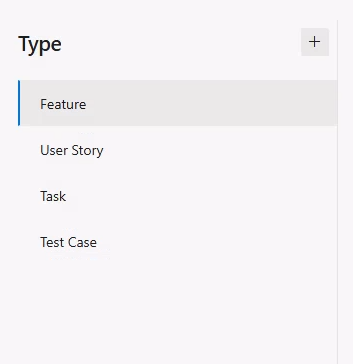
Adding a New Work Item Type
The Project Administrators can add any Azure DevOps out of the box (OOB) or custom work item types created within the organization/project to the list of supported types.
To Add a New Work Item Type, follow the below steps:
• Go to Project Settings > Extensions and select the AI Work Item Assistant extension.
• Open the Work Items tab.
• Click the + button to add a new work item type if required.
• Now select the work item type from left panel to configure the extension types or fields for that work item type.
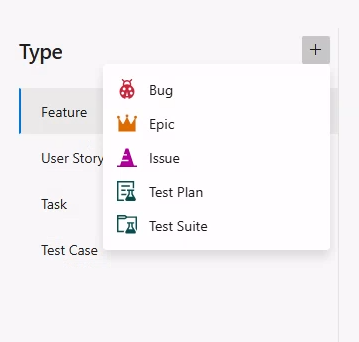
Configuring Extension Features
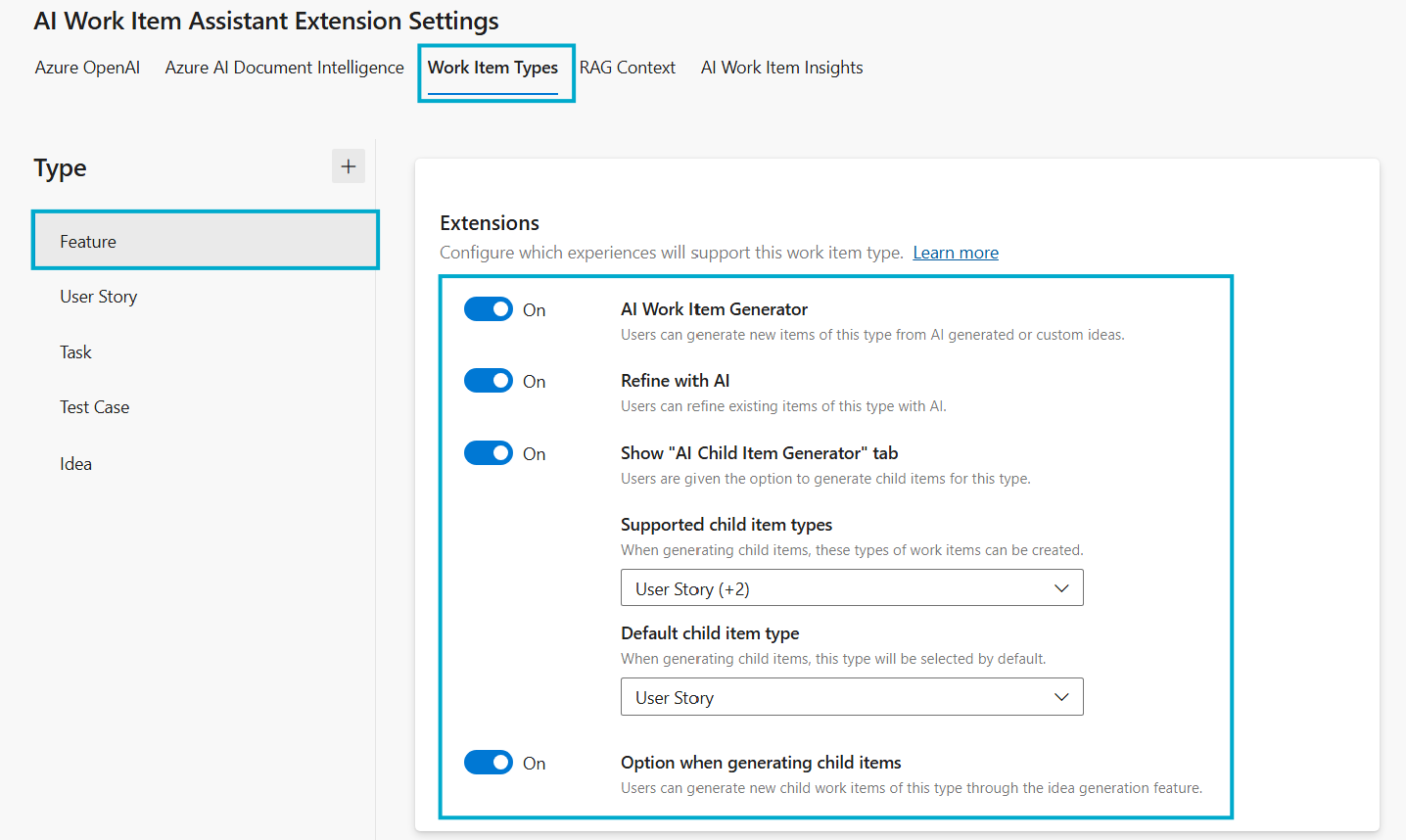
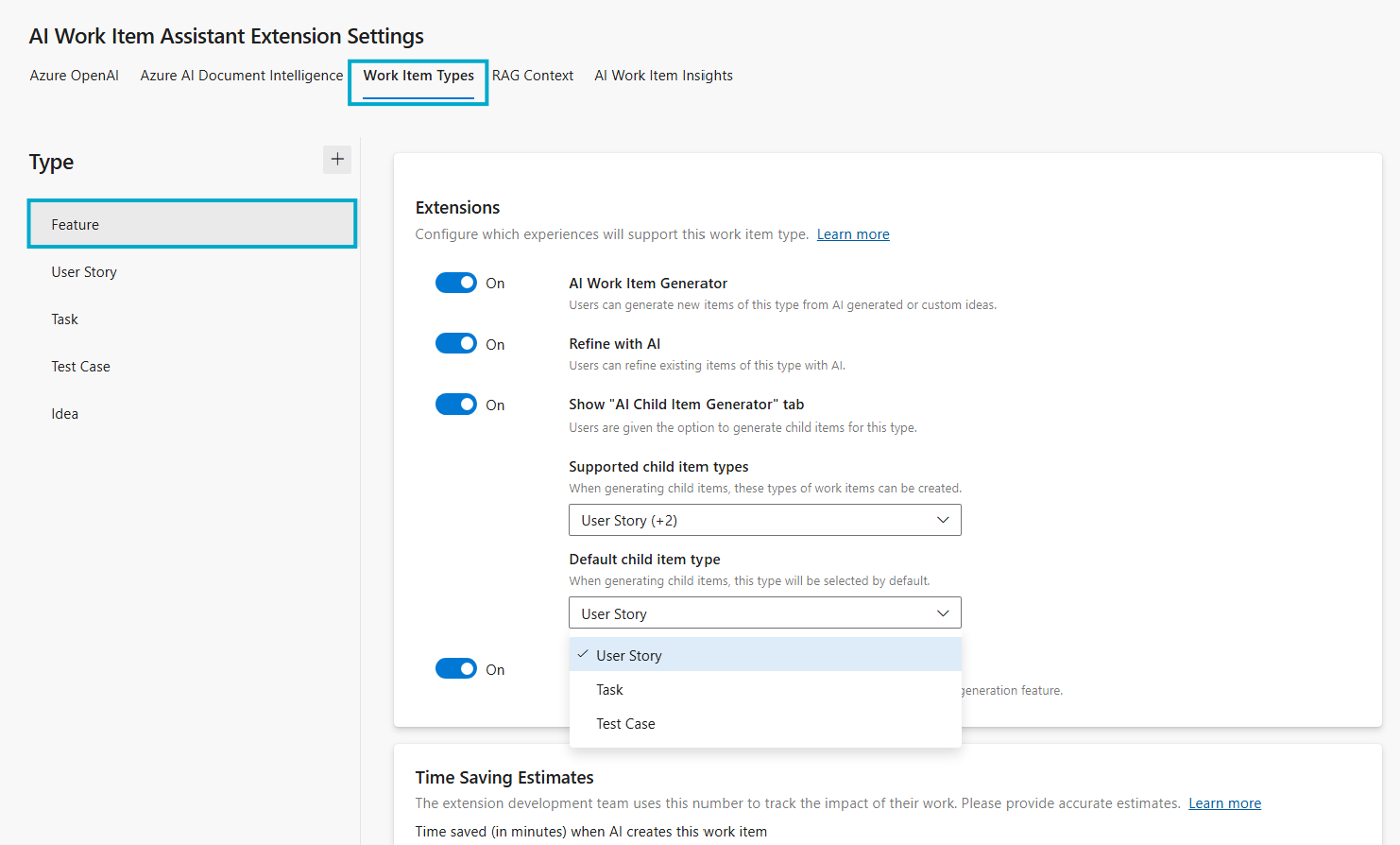
Administrators can manage the availability of extension features for each work item type by toggling them on or off individually. The available extension features include:
• AI Work Item Generator: Permits users to create new items of this type from AI-generated or custom ideas using the AI Work Item Generator
Extension.
• AI-Powered Refinement: Empowers AI-driven refinement of existing work items of this type.
• Option for Generating Child Items: Users can create new child work items of this type using the child item generation feature.
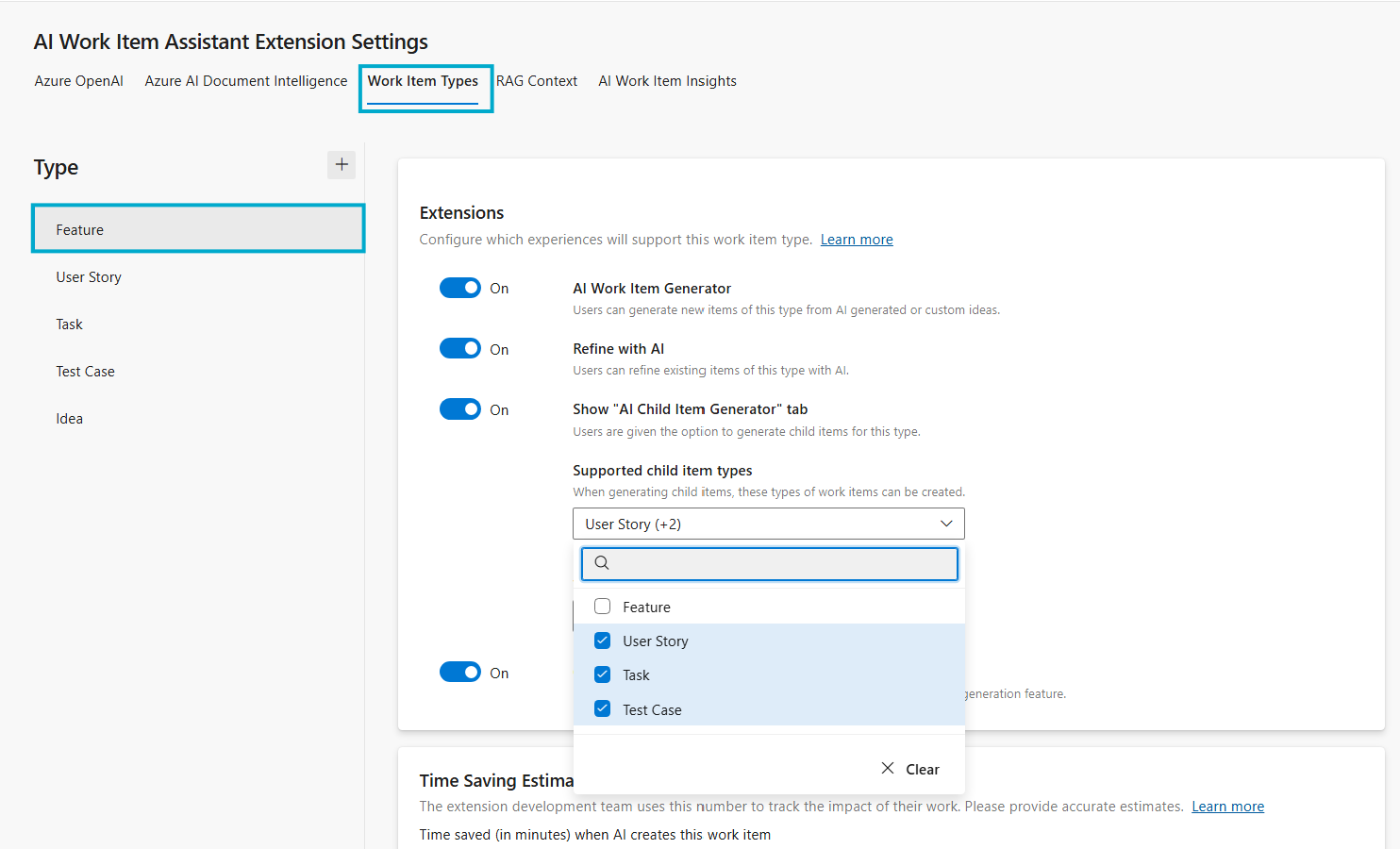
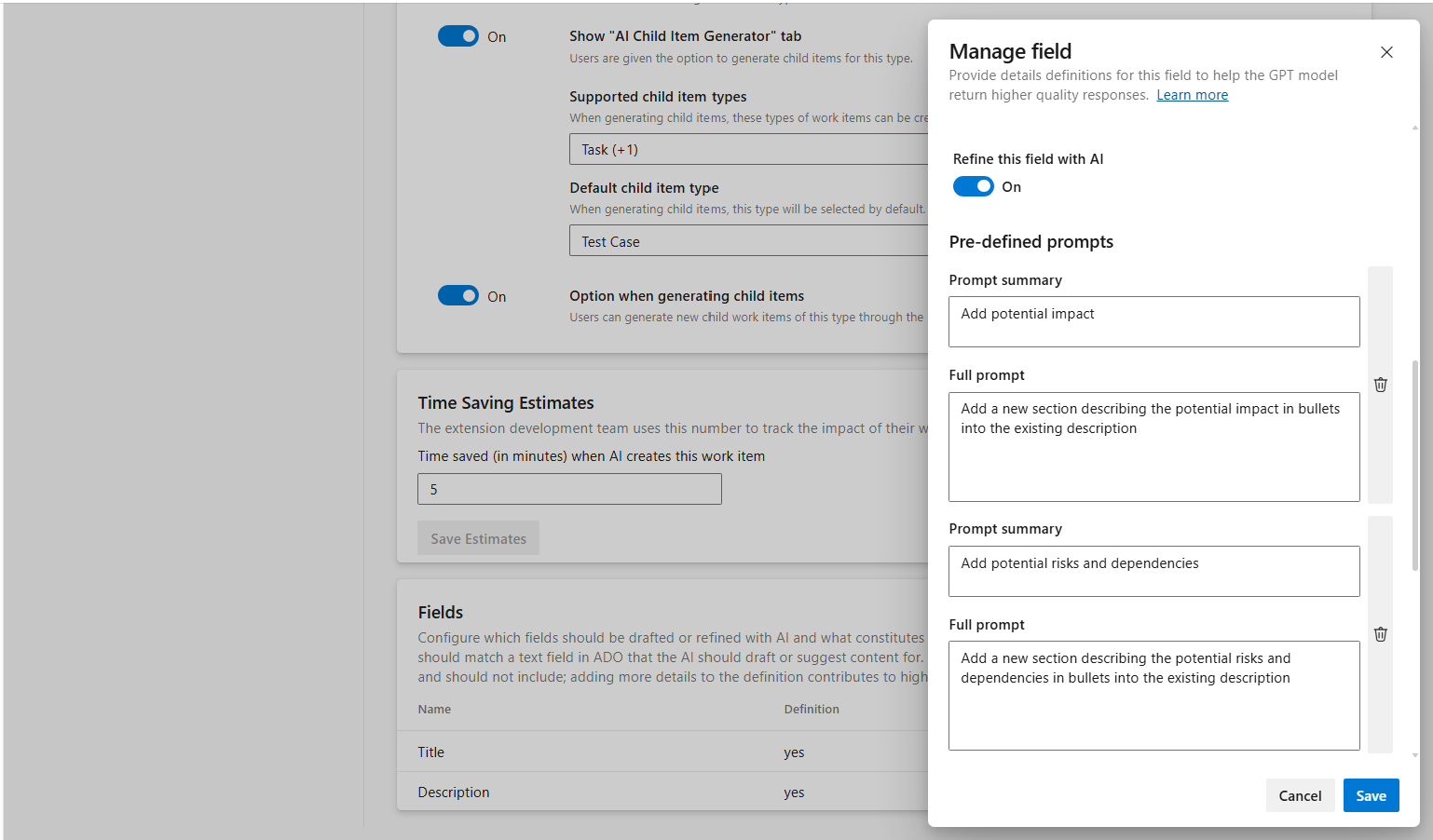
• Show "AI Child Item Generator" Tab: Allows you to generate child items for this particular work item type. Once activated, you can access two
extra settings for the child work items.
1. Allowed Child Item Types: Specifies the types of child work items that can be generated under this parent work item. Administrators can
define a list of child work item types for users to choose from when creating child items.
2. Default Child Item Type: Designates the default child item type selected automatically during child item generation from the current
selected parent work item type. This feature suggests a primary child type by default, simplifying the creation process for end users.
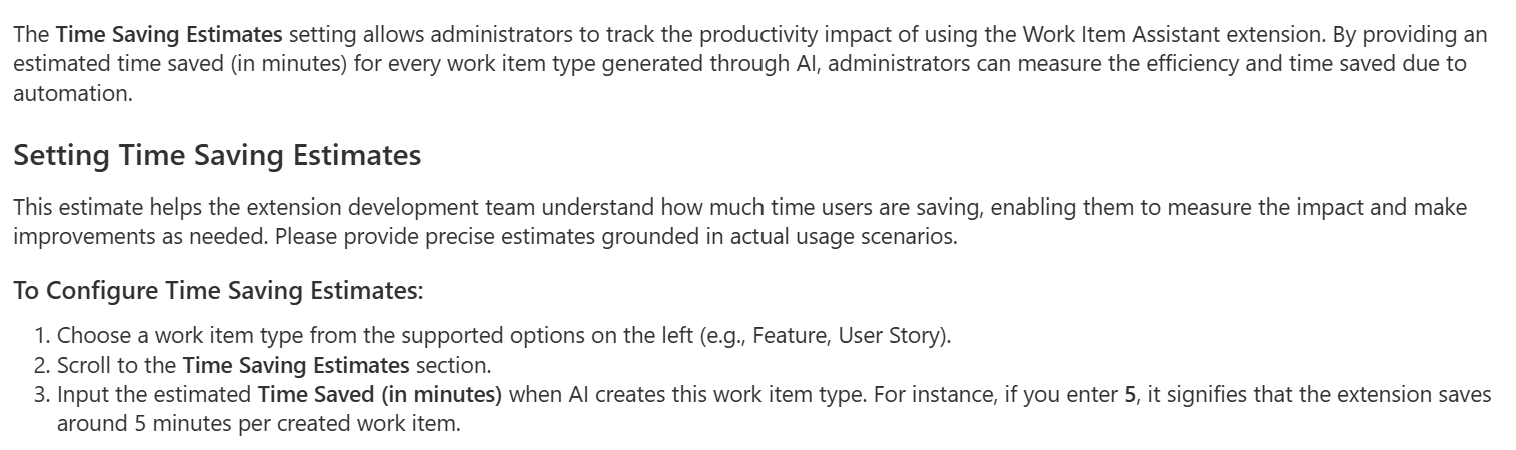
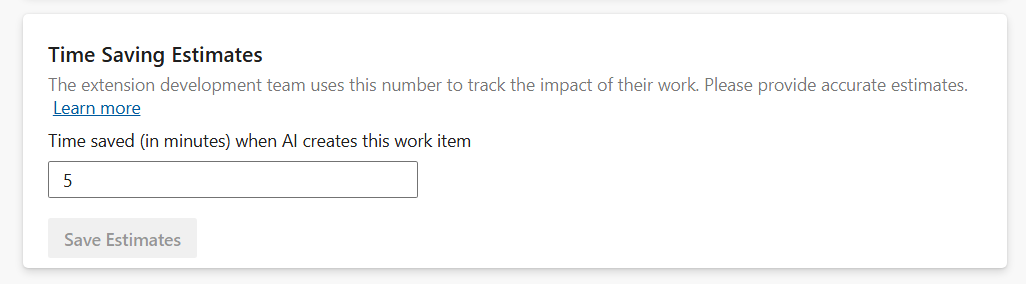
Time Saving Estimates
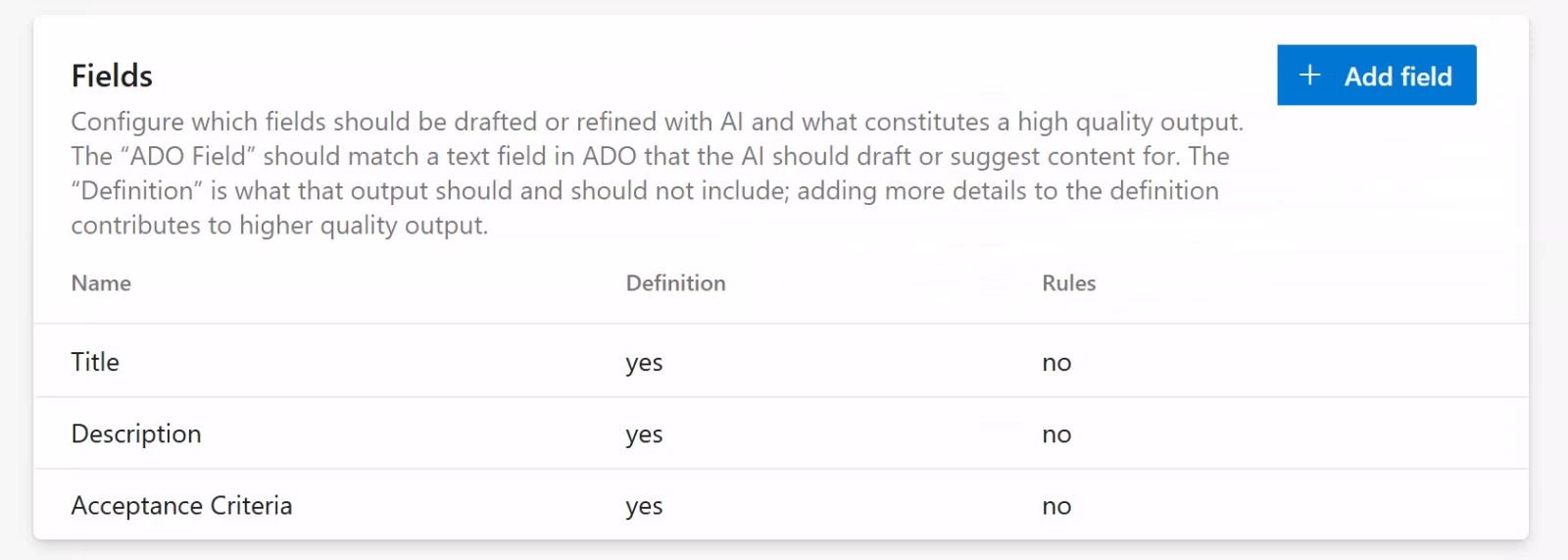
Managing Fields for Selected Work Item Type
Administrators now have the ability to customize specific prompts for fields associated with each selected work item type.
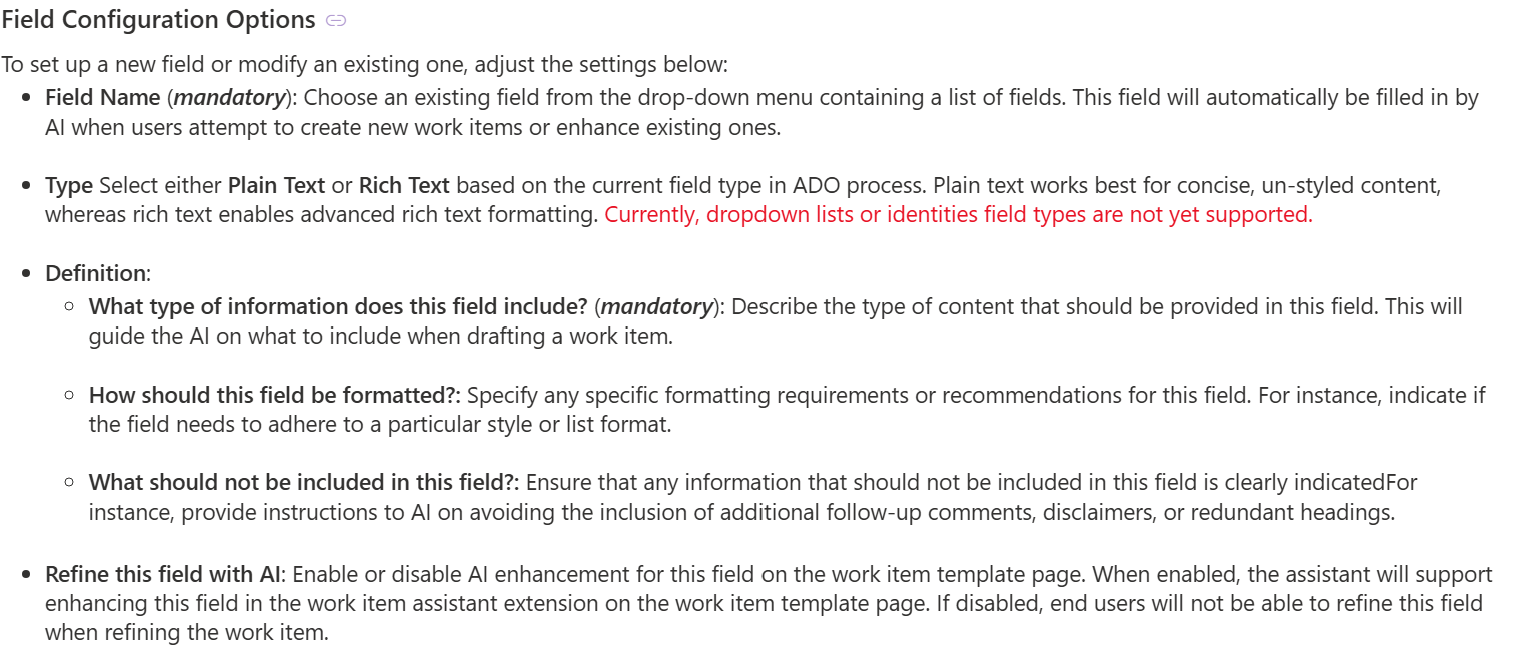
This enhancement enables the addition, formatting, and exclusion of targeted content or keywords generated by AI for those fields, ensuring that every work item captures relevant information tailored to project requirements. Comprehensive configuration options are provided for each field to guide users in entering accurate content, formatting, and exclusion instructions.
Administrators have the option to select the field, type, and additional parameters for each field, which help establish clear standards for field definition and its format.
Steps to Configure Fields:
Under the Manage Fields section, add, edit, or delete fields as needed.


To continue, please return to the installation steps to ensure all configurations are correctly applied. Following the setup process carefully guarantees a smooth and successful installation experience.
Back to Installation Steps