


Flighting Access Setup
Control access to AI Work Item Assistant with precision
What is Flighting?
Flighting is a feature that enables administrators to manage and control access to the AI Work Item Assistant extension. By using Flighting, you can selectively enable or disable the extension for specific projects and organizations, ensuring targeted rollout and testing.
Prerequisites
Before configuring the flighting settings:
• You must be a Project Collection Administrator
(organization admin) to configure organization and project
level flighting settings.
• You must be a Project Administrator to configure project
level flighting settings.


Manage Organization Access
Easily grant or restrict access to entire organization in ADO for streamlined permissions management.

Allow User Level Flighting
End users have the option to activate or deactivate the AI Work Item Assistant through ADO flighting.
Individual Project Access
Grant or revoke access for individual projects to tailor the extension availability precisely to your organizational needs.
Steps to Configure Flighting
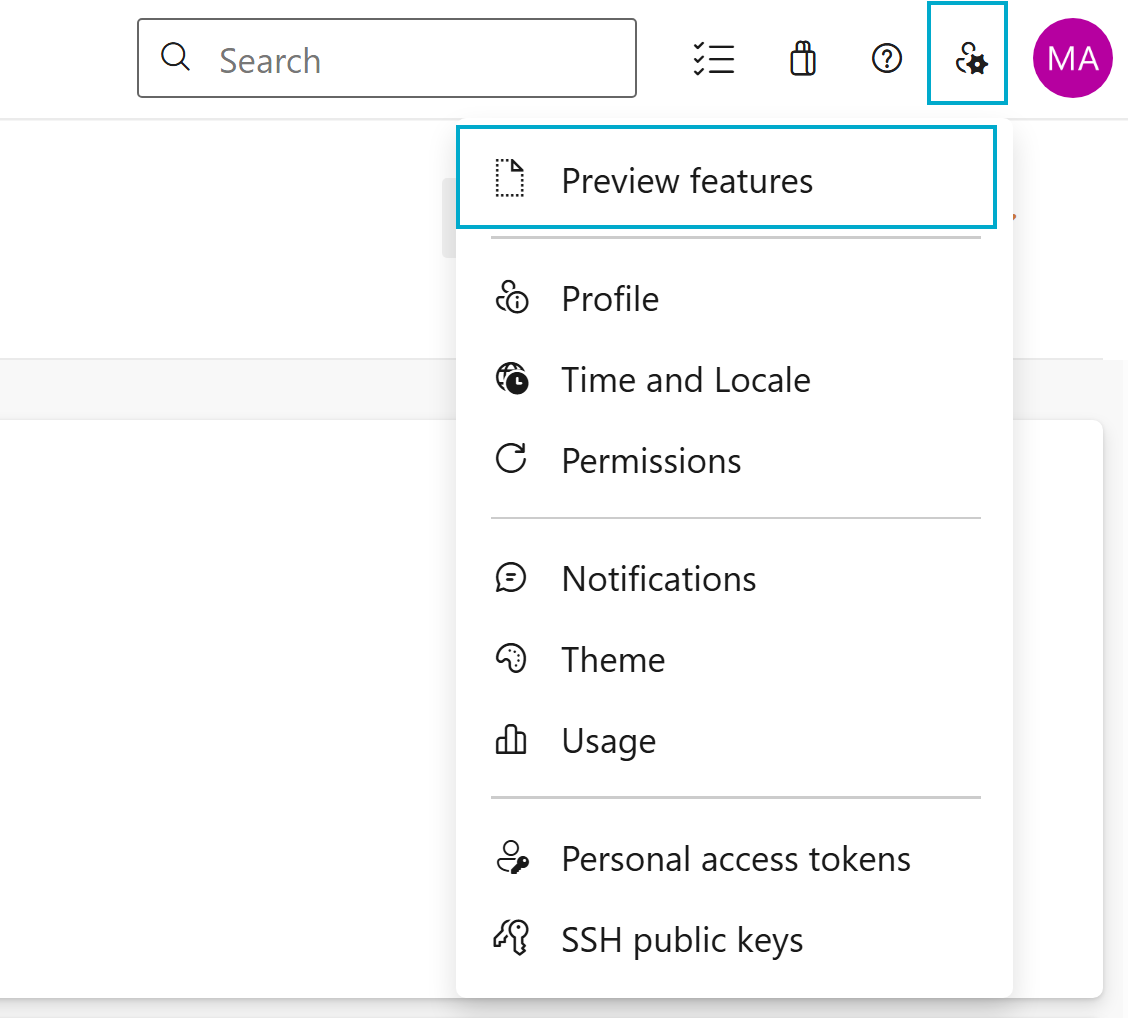
Organization/Project admins and end users in Azure DevOps, can see the features available to them by clicking Preview features under their profile menu:
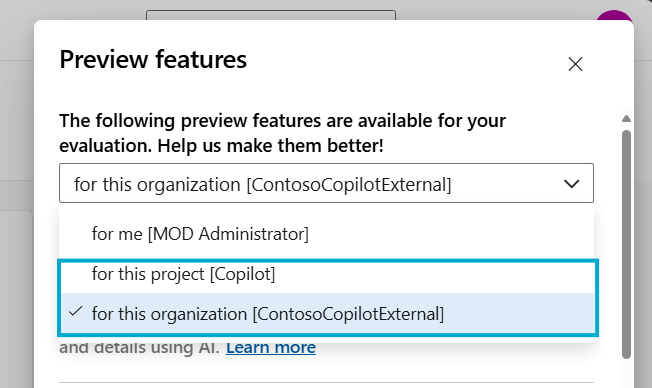
1. For organization/project admins:
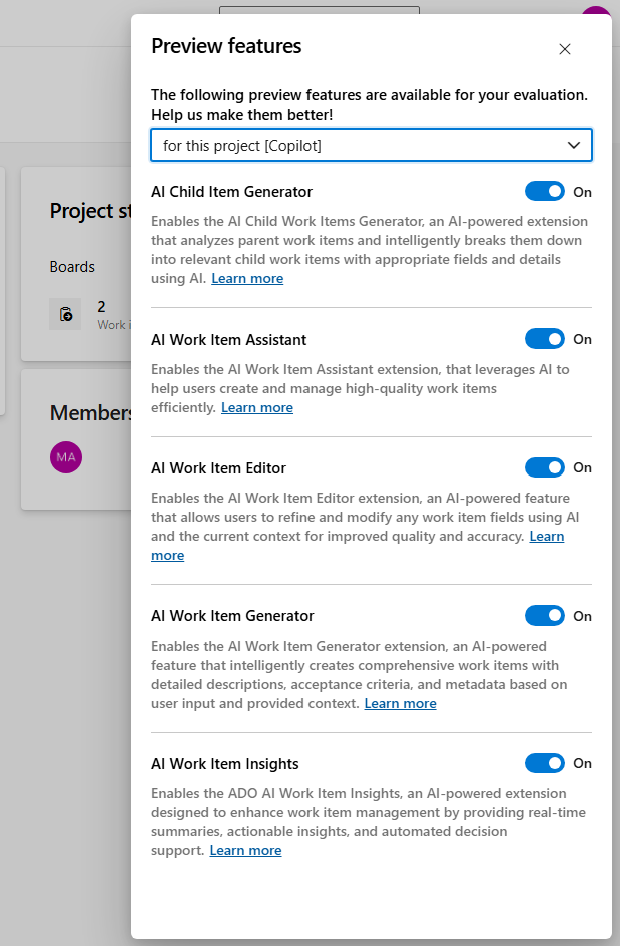
• The account/organization and project admins will see a drop-down that lets them view features that can be enabled
or disabled across the entire account/organization and project:
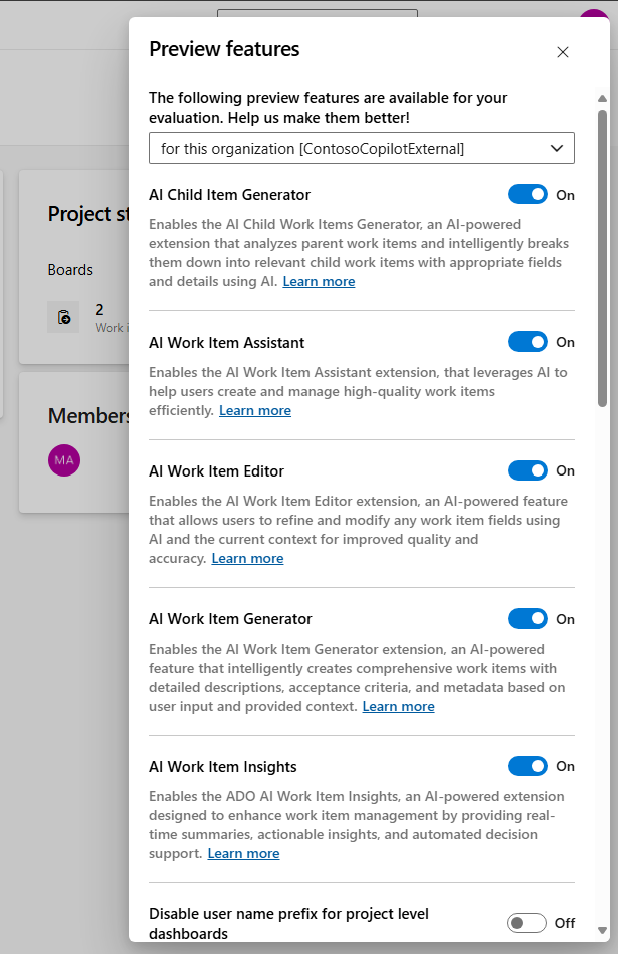
• Organization administrators have the ability to activate or deactivate the complete AI Work Item Assistant
extension or any specific feature that belongs to the AI Work Item Assistant extension suite as listed
below:
1. AI Work Item Generator
2. AI Child Item Generator
3. AI Work Item Editor
4. AI Work Item Insights
2. For ado users:
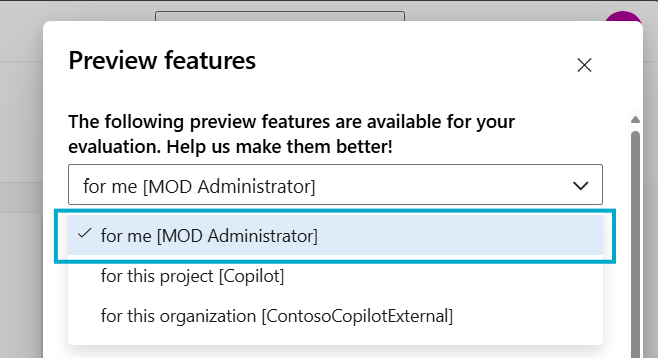
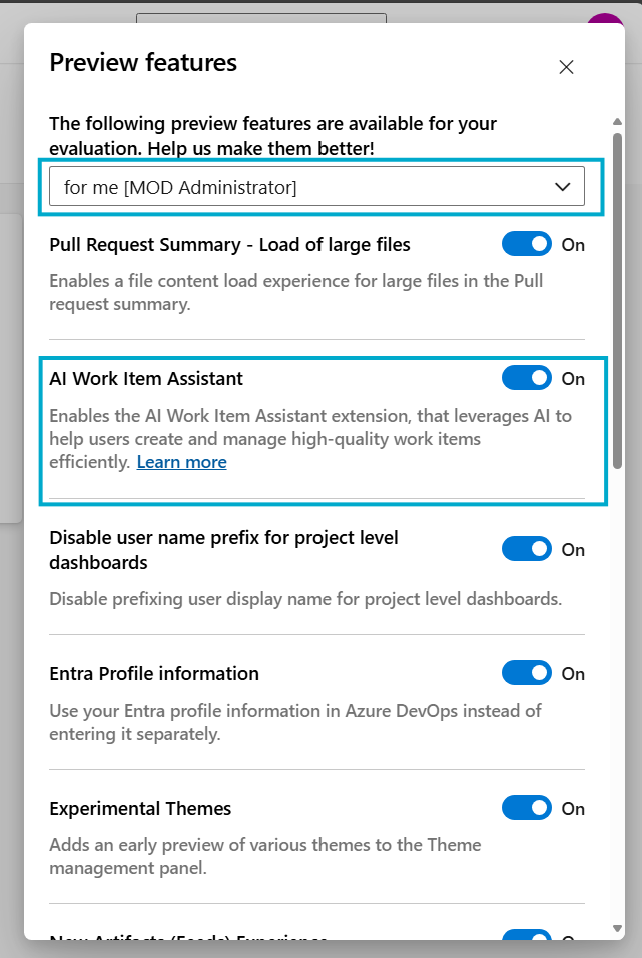
• The ado users will see a drop-down that lets them view features that can be enabled or disabled for them from the
'for me' dropdown option:
To continue, please return to the installation steps to ensure all configurations are correctly applied. Following the setup process carefully guarantees a smooth and successful installation experience.
Back to Installation Steps