Overview
This comprehensive manual offers a step-by-step guide on managing work item types, enabling/disabling extension features and set up the field's definitions for each work item type that the Work Item Assistant will back while creating or polishing your work items.
Prerequisites
You must be part of the Project Administrators ADO team/group to add or modify the work items settings.
Default Supported Work Item Types
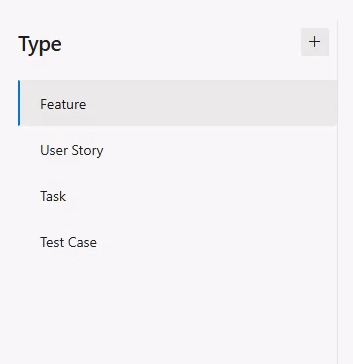
By default, the Work Item Assistant extension supports the below 4 work item types:
- Feature
- User Story
- Task
- Test Case
These default types form the essential framework for managing work in Azure DevOps.
Administrators have the flexibility to remove existing types or add new ones, whether they are out-of-the-box or custom work item types, as needed.
Adding a New Work Item Type
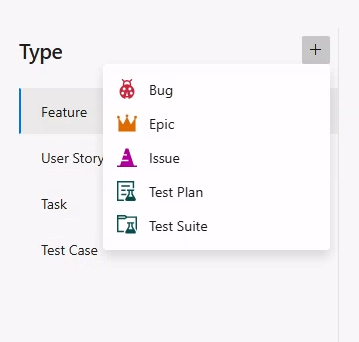
Administrators can add any ado out of the box or custom work item type created within the organization/project to the list of supported types.
To Add a New Work Item Type, follow the below steps:
- Go to Project Settings > Extensions and select the Work Item Assistant.
- Open the Work Items tab.
- Click the + button to add a new work item type if required.
- Select any of the work item type from left panel to configure the extension types or fields for that work item type.
Configuring Extension Features
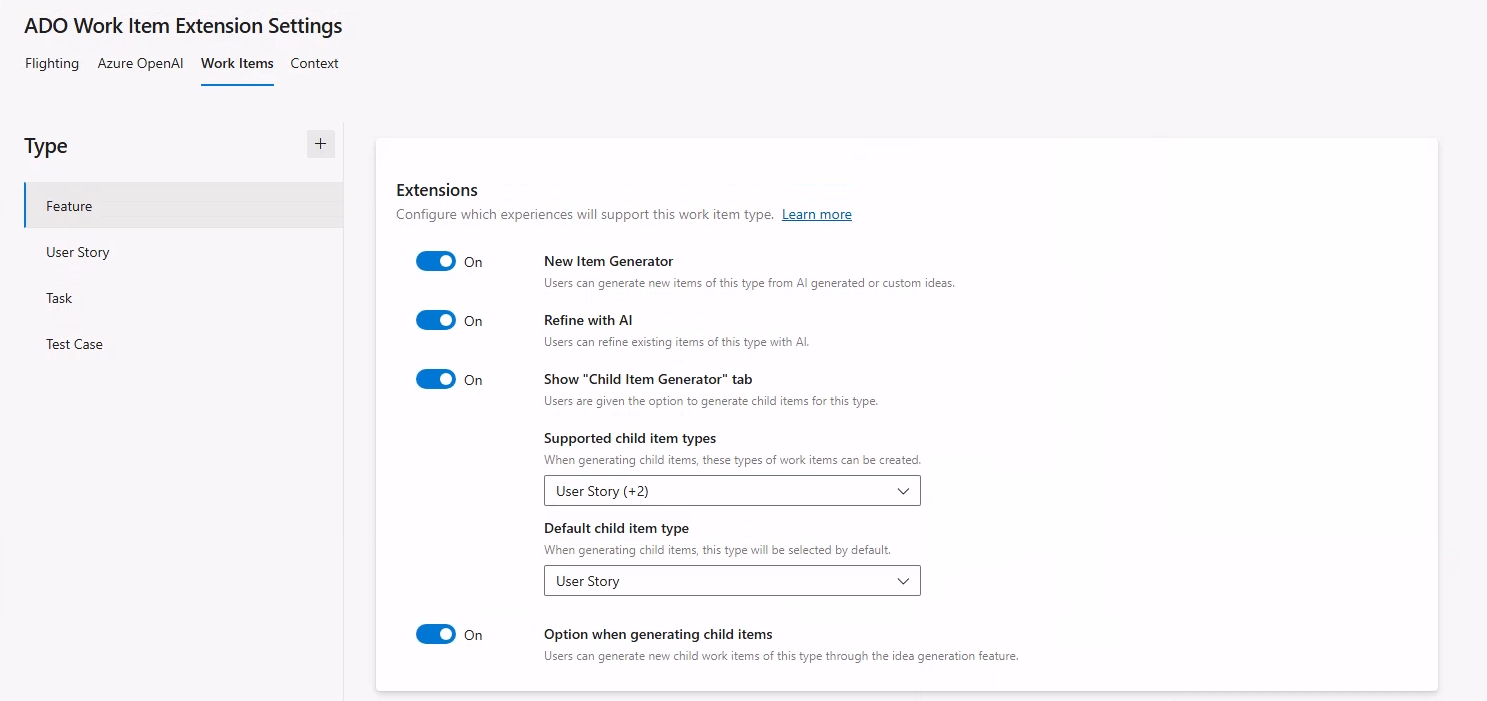
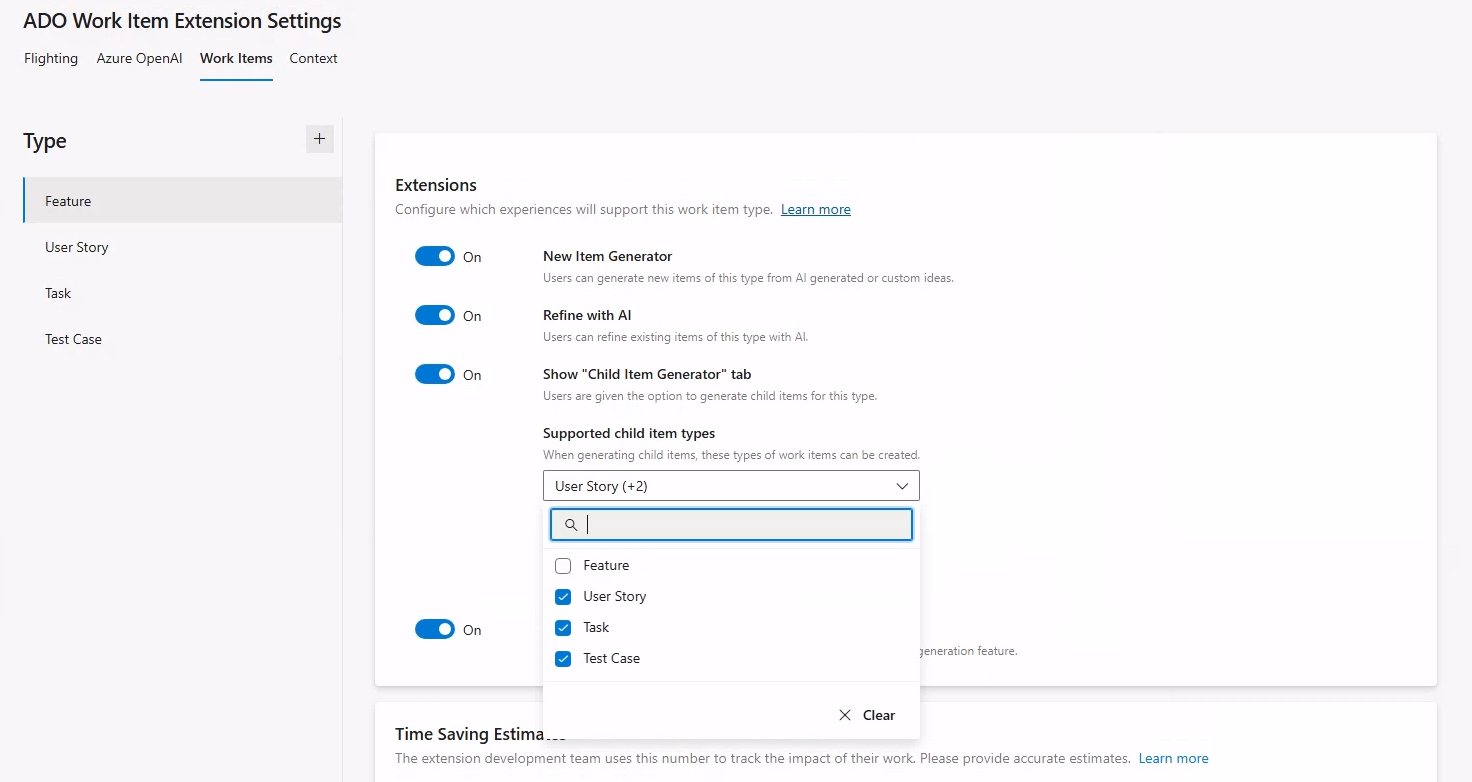
Administrators can manage the availability of extension features for each work item type by toggling them on or off individually. The available extension features include:
- New Item Generator: Permits users to create new items of this type from AI-generated or custom ideas.
- AI-Powered Refinement: Empowers AI-driven refinement of existing items of this type.
- Option for Generating Child Items: Users can create new child work items of this type using the child item generation feature.
-
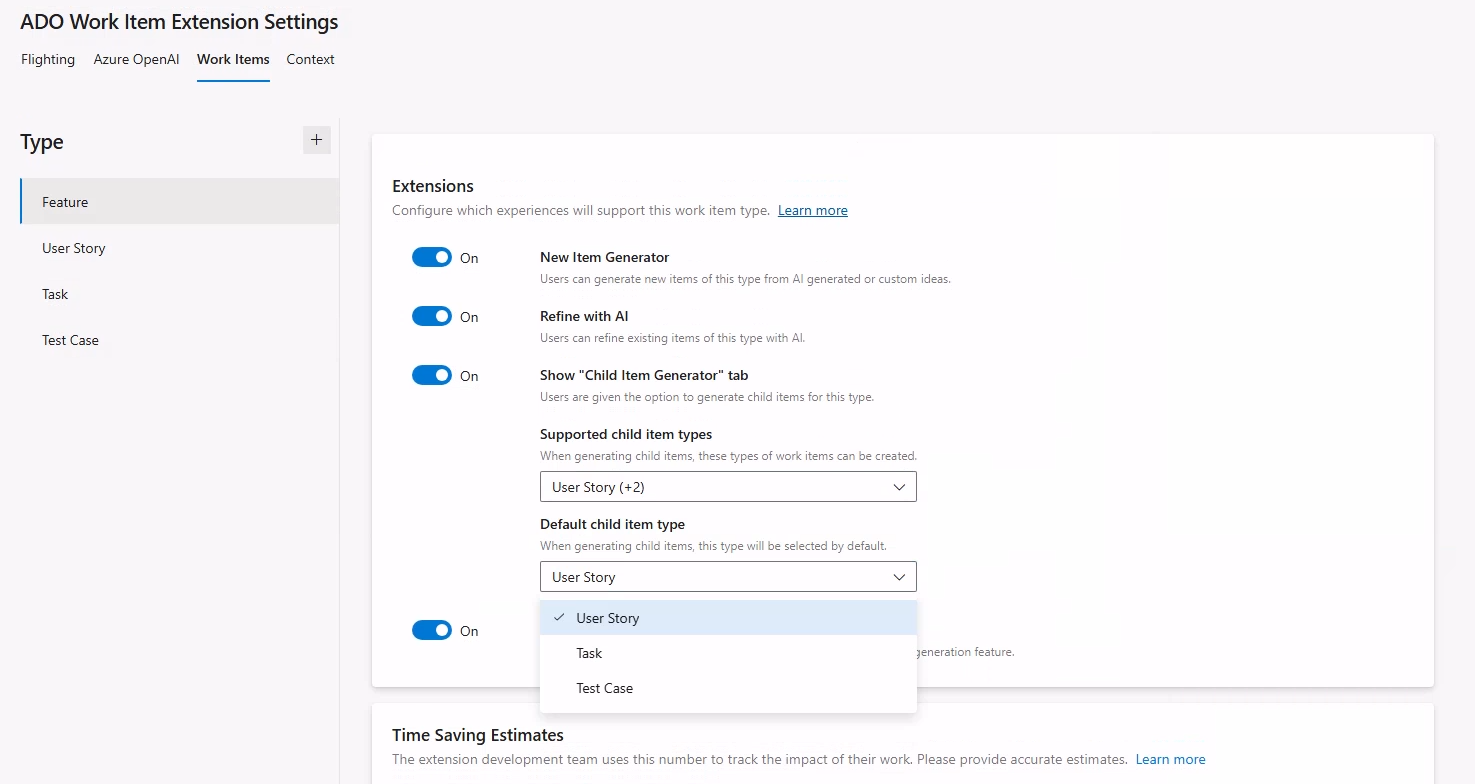
Show "Child Item Generator" Tab: Allows you to generate child items for this particular work item type. Once activated, you can access two extra settings for the child items.
- Allowed Child Item Types: Specifies the types of child work items that can be generated under this parent category. Administrators can define a list of child work item types for users to choose from when creating child items.
- Default Child Item Type: Designates the default child work item type selected automatically during child item generation. This feature suggests a primary child type by default, simplifying the creation process for end users.
Time Saving Estimates
The Time Saving Estimates setting allows administrators to track the productivity impact of using the Work Item Assistant extension. By providing an estimated time saved (in minutes) for every work item type generated through AI, administrators can measure the efficiency and time saved due to automation.
Setting Time Saving Estimates
This estimate helps the extension development team understand how much time users are saving, enabling them to measure the impact and make improvements as needed. Please provide precise estimates grounded in actual usage scenarios.
To Configure Time Saving Estimates:
- Choose a work item type from the supported options on the left (e.g., Feature, User Story).
- Scroll to the Time Saving Estimates section.
- Input the estimated Time Saved (in minutes) when AI creates this work item type. For instance, if you enter 5, it signifies that the extension saves around 5 minutes per created work item.

This feature enables the development team to gain valuable insights into how the extension enhances workflow efficiency.
Managing Fields for Selected Work Item Type
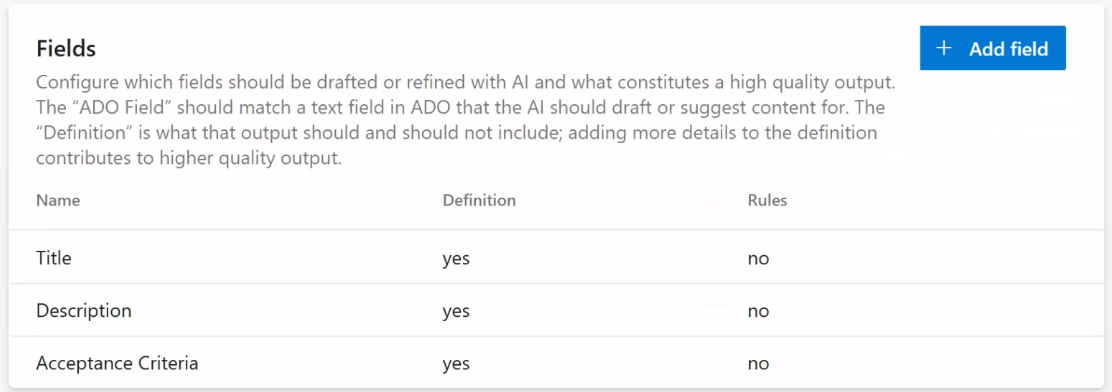
Administrators can now personalize the fields for each chosen work item type. This feature facilitates the inclusion, modification, and removal of fields, guaranteeing that every work item records pertinent information specific to project needs. Detailed configuration settings are available for each field to assist users in inputting the correct content, formatting, and exclusions.
Administrators have the option to select the field, type, and additional parameters for each field, which help establish clear standards for field definition and its format.
Under the Manage Fields section, add, edit, or delete fields as needed.
Field Configuration Options
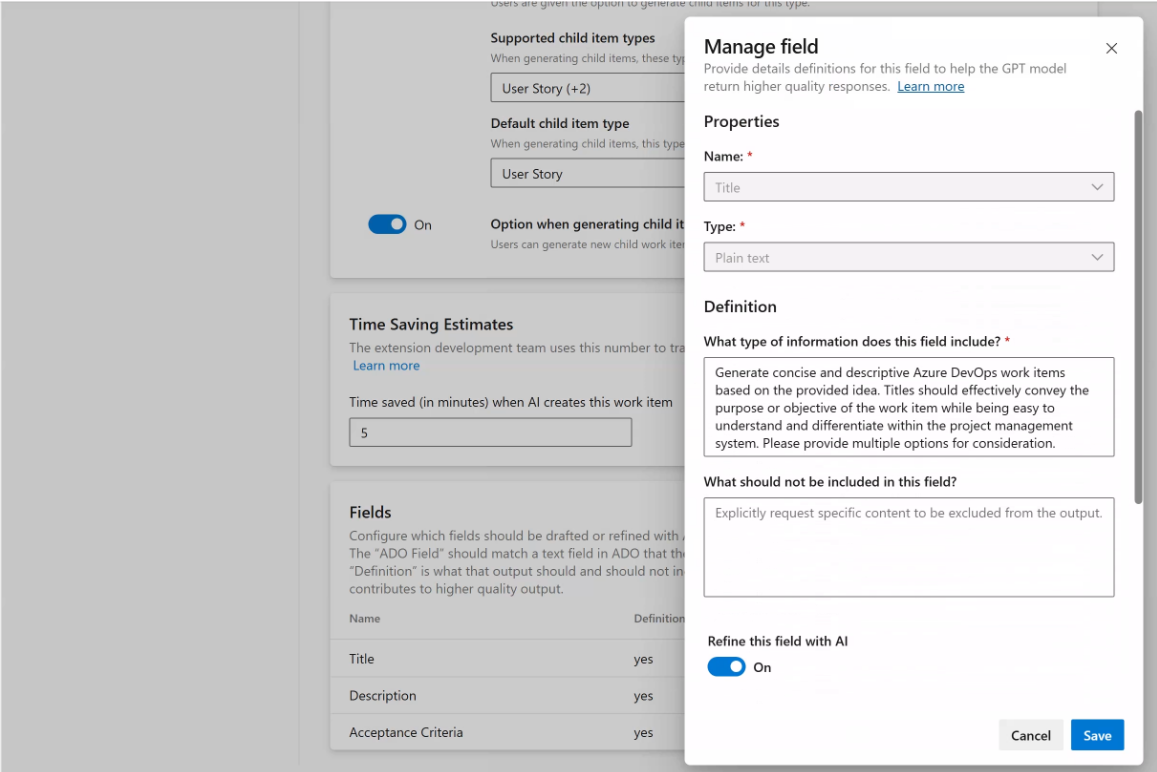
- Field Name (mandatory): Choose an existing field from the drop-down menu containing a list of fields. This field will automatically be filled in by AI when users attempt to create new work items or enhance existing ones.
- Type Select either Plain Text or Rich Text based on the current field type in ADO process. Plain text works best for concise, un-styled content, whereas rich text enables advanced rich text formatting.
-
Definition:
- What type of information does this field include? (mandatory): Describe the type of content that should be provided in this field. This will guide the AI on what to include when drafting a work item.
- How should this field be formatted?: Specify any specific formatting requirements or recommendations for this field. For instance, indicate if the field needs to adhere to a particular style or list format.
- What should not be included in this field?: Ensure that any information that should not be included in this field is clearly indicated. For instance, provide instructions to AI on avoiding the inclusion of additional follow-up comments, disclaimers, or redundant headings.
- Refine this field with AI: Enable or disable AI enhancement for this field on the work item template page. When enabled, the assistant will support enhancing this field in the work item assistant extension on the work item template page. If disabled, end users will not be able to refine this field when refining the work item.
This customization feature enables organizations to guarantee that every work item type includes fields that gather vital and pertinent information, enhancing uniformity and excellence throughout projects.
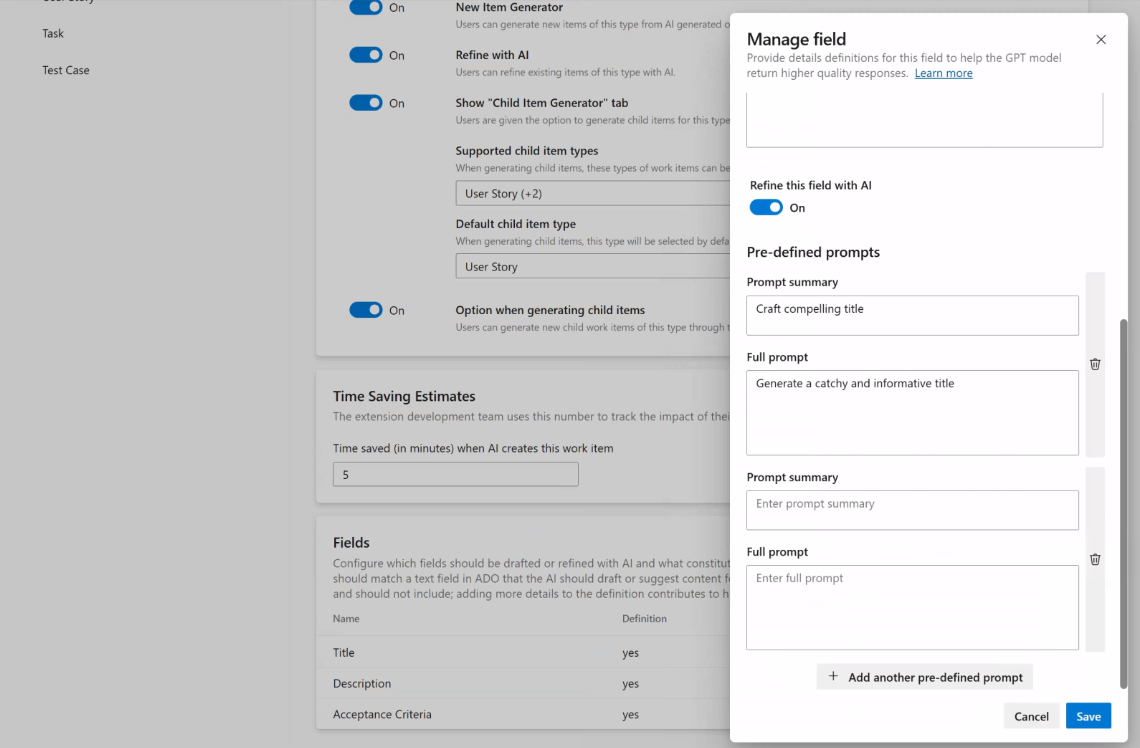
Pre-defined Prompt Library
With this feature, administrators can establish a comprehensive prompt library for users to choose from when refining existing or new work items.
These prompts act as predefined templates, enabling users to commence their tasks with well-structured and uniform inputs. Consequently, this functionality enhances the accuracy and clarity of work item fields.
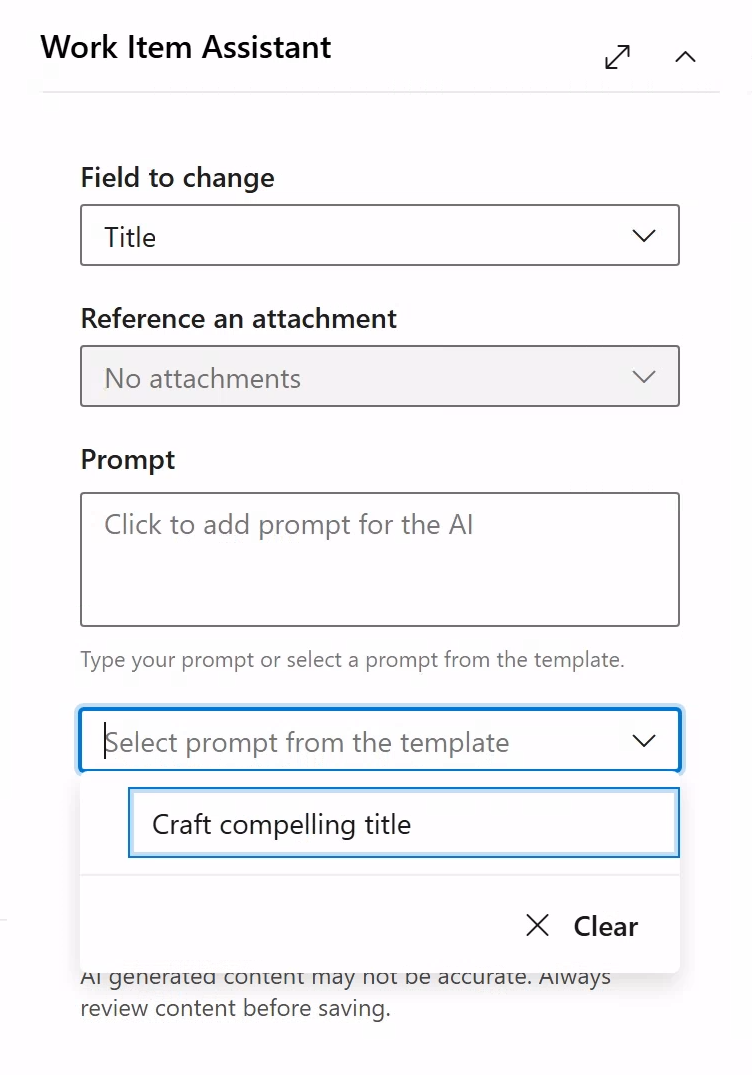
Administrators have the ability to include a set of prompts that will be presented to end users when they opt to refine a field within the Work Item Assistant extension. These prompts are organized by field type and are displayed as selectable templates, assisting users in filling in fields with pertinent details.
To set up each pre-defined prompt, adjust the following:
- Prompt Summary: A concise summary or heading for the prompt. This provides users with a quick understanding of the prompt's purpose.
- Full Prompt: The entire text or framework that serves as a starting point for users. This should offer a comprehensive template outlining the specific details to include in the field.
Using the Prompt Library in AI Work Item Assistant
When users click on a field designated for AI enhancement on the work item template page, the prompt library will show a selection of predefined prompts tailored to that particular field. Users have the option to pick a prompt from the library to begin with, guaranteeing that entries adhere to project standards and expectations.